Guide
How to Create an Online Form in 2026: Step-by-Step Guide
Learn how to create an online form step by step, from choosing the right questions to publishing your form and managing responses.
Online forms are one of the simplest ways to collect information from customers, applicants, employees, students, event attendees, or anyone else you need information from.
A good form does more than collect answers. It asks the right questions, makes completing the form easy, and gives you a clear way to review what happens after someone submits.
In this guide, we'll walk through how to create an online form from start to finish.
1. Decide what information you actually need
Before creating your form, decide what you need to learn from the person completing it. Start with the outcome.
For a job application form, you may need:
- Name
- Email address
- Phone number
- Work experience
- CV or portfolio
- Availability
Avoid adding questions simply because you can. Every unnecessary question makes the form longer and can make people less likely to finish it. Collect only information you actually plan to use.
2. Choose an online form builder
There are many tools for creating online forms, including Google Forms, Tally, Typeform, and MyKayd. The right tool depends on what you're trying to accomplish.
For a simple survey, a basic form builder may be enough. For applications, onboarding, registrations, or client intake, it is also worth thinking about what happens after someone submits.
MyKayd is designed around both sides of that process: collecting information and helping you manage the responses afterward.
3. Create your form
In MyKayd, start by creating a new form. Give it a clear title that tells people exactly what they're completing.
Examples include Job Application, Internship Application, Customer Feedback, Event Registration, and Client Intake Form. Add a short description when people need context before beginning.
4. Add your questions
Add the questions respondents need to answer. These might include short text, long text, email, phone number, multiple choice, checkboxes, dates, and file uploads.
Use clear labels. Instead of Information, prefer What is your current job title? Questions should be understandable without additional explanation whenever possible.
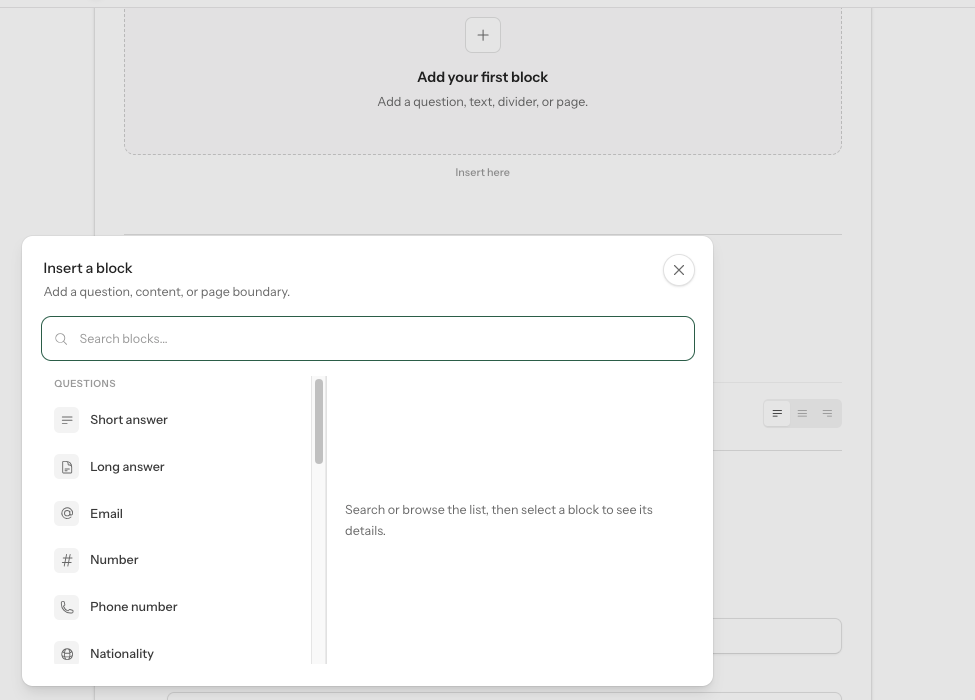
After adding blocks, you can move questions into the order that makes the most sense and use the text toolkit to format supporting content.
5. Keep the form simple
Good forms are usually shorter than people expect. Group related questions and remove anything you do not genuinely need.
For a longer form, use clear sections such as Personal information, Experience, Documents, and Additional questions.
Complete the form yourself before publishing. If it feels repetitive or unnecessarily long to you, it will probably feel the same way to respondents.
6. Make the form easy to understand
Good form design is not only about appearance. People should immediately understand what the form is for, why you need the information, which questions are required, and what happens after submission.
Use short descriptions only where necessary, avoid jargon, and make sure important forms work properly on mobile devices.
7. Test your form before publishing
Before sharing publicly, submit a test response yourself. Check required fields, mobile layout, spelling, file uploads, the confirmation message, response data, links, and question order.
Testing the full experience often reveals issues that are difficult to notice while building.
8. Publish and share your form
Once everything looks correct, publish your form. Share its link through email, your website, social media, messaging apps, job listings, QR codes, or internal communication.
Make sure the person receiving the link understands why they are being asked to complete it.
9. Review and manage submissions
Creating the form is only the first half. Once responses arrive, you need a clear way to review and manage them.
For a simple survey, this may mean reading responses or exporting results. Applications, onboarding, client intake, and internal requests can require more work after submission.
Application submitted
↓
Review information → check documents → follow up → make a decision → complete the process
This is where a form often becomes a workflow. MyKayd is being built around helping organizations collect information and manage what happens after submission in one place.
10. Start with a template
If you do not want to begin from scratch, start with a template. Current MyKayd templates include Intern survey, Patient Registration, Connect with Us, and How did you find MyKayd?
Choose one that is close to what you need, add it to your workspace, and customize the copy and questions.
Ready to create your first form?
Create an online form with MyKayd and start collecting responses in minutes.